How to Take a White Background Product Photo (No Studio)
Key takeaways
A clean white background product photo needs three things: even window light, a seamless white sweep, and an edit that lands the background at RGB 255,255,255.
The DIY kit costs under $40: two foam boards, a phone, a north-facing window, and a free editing app. Budget 20 to 60 minutes of editing per image at first.
Amazon rejects off-white. The main image must be pure white, the product must fill 85% or more of the frame, and text, logos, and props are banned.
AI generation turns one clean source image into multiple angles and lighting setups in minutes instead of weeks, with roughly 90% of outputs ready to publish.
You can take a white background product photo with a smartphone, a sheet of white foam board, and the light from one window. Editing happens in a free app. So you do not need a studio, and you do not need to wait weeks for a photographer.
Amazon, ad platforms, and clean product pages all expect that shot. But a professional shoot runs $500 to $3,000 a day, and booking one takes weeks. Below is the full DIY method first, then exactly where AI product photography deletes the manual steps.
What makes a good white background product photo?
A good white background product photo has one job: show the product accurately with nothing competing for attention. In practice, that comes down to three things, and most DIY shots miss at least one of them.
Even light. No hard shadows, no hot spots, and no gray gradient creeping in from one side of the frame.
Sharp focus on the product. Soft edges read as cheap, especially once a marketplace zooms in.
No color cast. Warm bulbs turn white boards yellow, and that tint bleeds onto the product itself.
Then there is white versus pure white. Amazon's seller guidance specifies a background of RGB 255, 255, 255 with the product filling 85% or more of the frame. Text, logos, watermarks, and props are also out on the main image.
Why 250 is not white: a background at RGB 250 looks white on your phone. On a white web page it reads as a faint gray box around your product. Amazon's checks can flag it, and shoppers read it as cheap without knowing why.
The DIY method: what you need
The whole kit fits in a tote bag. Most of it you already own, because a current phone camera is more than enough for a marketplace-grade white background product photo.
The minimum gear
Two sheets of white foam board (or poster board), each under $5 at a craft store.
A smartphone with a 12-megapixel or better camera. Avoid digital zoom, which degrades the image.
A window with indirect light. North-facing is ideal because the light stays soft and consistent all day.
A free editing app: Snapseed or Lightroom Mobile on your phone, or GIMP on a desktop.
Optional upgrades
A lightbox kit ($30 to $60) for repeatable results across many SKUs.
A tripod or a stack of books. Camera shake is the top cause of soft product shots.
A third foam board as a reflector to fill the shadow side.
Be realistic about the ceiling, though. DIY works well for small, flat, or matte products: apparel, packaged goods, a canvas tote. Glossy, transparent, and complex shapes, like glass bottles, jewelry, or liquids, pick up reflections and need much more editing time.
Step 1: Set up your background and lighting
First, lay one foam board flat on a table beside the window. Then curve the second board up behind it, taping the far edge to a wall or a box, so the two form one seamless sweep with no horizon line.
Light matters more than any other variable here. Shopify's product photography guide recommends north-facing windows and overcast days because clouds act as a free diffuser, while direct sun throws hard shadows.

The whole studio: one flat board, one curved board, window light from the side, and a reflector opposite.
Position the table so light hits the product from the side, roughly 90 degrees from the lens.
Stand the third board opposite the window to bounce light back into the shadow side.
Using a lightbox instead? Put it near the same window or use its LED strips. The diffusion panels do the foam board's job in a smaller footprint.
Step 2: Position and shoot the product
Place the product in the center of the sweep, a hand's width in front of the curve. That gap softens the back board, which hides texture and makes the edit easier.
Mount the phone on a tripod or prop it against something solid. Set a 3-second timer so your finger does not shake the frame.
Turn on gridlines, then center the product on the middle intersection.
Tap the product to lock focus and exposure. Tap the background once to set white balance if your camera app allows it.
Shoot at the highest resolution available and never use digital zoom. Move the phone closer instead.
Take 5 to 10 frames with small shifts in angle and height, so you have options later.
For Amazon, shoot straight on at eye level, because that is what the thumbnail grid rewards. For ads and social, also grab a frame at a 15 to 30 degree angle. The slight tilt adds depth without breaking the clean-background rule.
Does your product creative actually pass? Olivia reviews your store, listing images, ads, and email for free, then returns a funnel pre-audit with what to fix first. Start my free audit
Step 3: Edit your white background product photo to true white
Straight out of the camera, your background will read somewhere between 225 and 245. That is the gap editing closes. A white background product photo lives or dies here: the background must hit 255 while the product keeps its real color and detail.
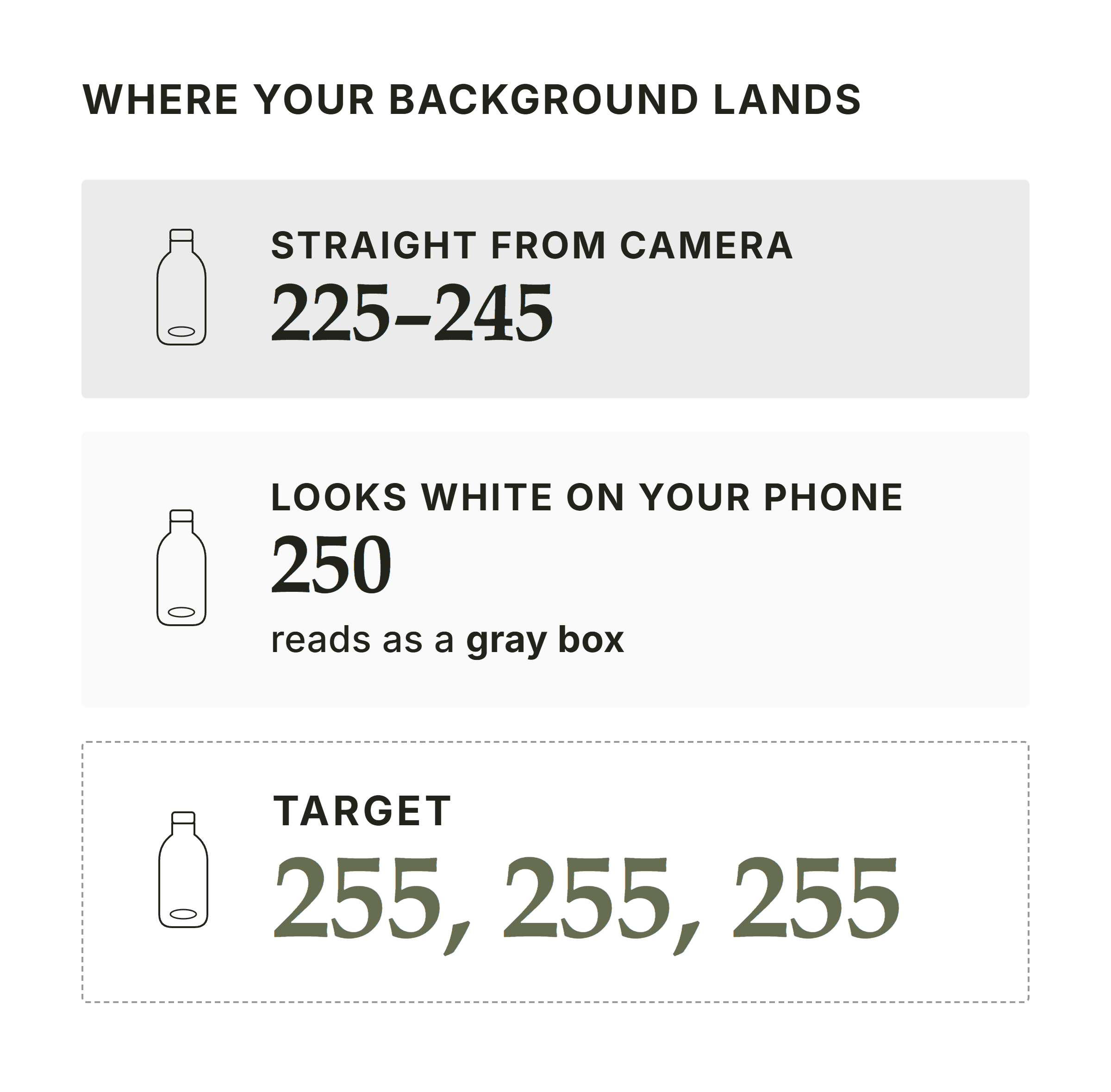
Only 255 vanishes into the page. Anything lower shows up as a faint box around your product.
In Lightroom Mobile or Snapseed, raise Whites and Highlights until the background goes clean. Stop the moment the product's edges start to glow.
Use a selective or masking tool to brighten only the background if the product washes out first.
Check the result with an eyedropper in GIMP or Photoshop. You want 255,255,255; anything under 250 reads as off-white next to a true white page.
Gray patches left? Paint them out with the healing brush, or cut the product out with remove.bg or Photoshop's Select Subject and drop it on a solid white layer.
Export as JPEG at full resolution. Amazon asks for more than 1,000 pixels per side so zoom works, and 1,600 pixels or more is the safer target.
Cutout tools deserve a fair word. Canva's background remover and remove.bg handle simple silhouettes well and cost nothing to try. However, fine hair, fur, glass, and chain jewelry still produce jagged edges that need a manual cleanup pass.
If you want a sharper comparison of tools for this step, our roundup of AI image editors for DTC brands scores six of them on edge accuracy and output readiness.
Step 4: Quality-check before you upload
Never judge the image inside your editor, because editors show it on a gray canvas. Instead, open the file in a browser tab or drop it onto a blank white slide. Hidden flaws jump out.
The pre-upload checklist
Fringe and halos: a bright or dark rim around the product edge from over-brightening or a rough cutout.
Color cast: compare the product to the physical item under daylight. Whites on the product should stay white, not cream.
Shadow logic: a soft contact shadow under the product is fine and adds realism. A long cast shadow is not.
Amazon main image: pure white, 85% fill, no text, no props, no watermarks, at least 1,000 pixels on the long side.
Meta and Google: product clearly visible, no text baked into the main creative, correct aspect ratio for the placement.
How AI product photography changes this workflow
The DIY method works. But add it up honestly: an hour to set up, 10 minutes per SKU to shoot, and 20 to 60 minutes per image in editing while you learn. For a catalog of 40 products, that is weeks of evenings.
AI product photography skips the shoot entirely. You upload one existing product image, describe the shot in plain language, and the system generates white background product photos, or any scene you name, in minutes.
What that removes
No foam board, no window hunting, no waiting for an overcast day.
No editing pass to drag the background to 255,255,255. It starts there.
No re-shoot for a new angle or lighting mood.
Output lands at platform-correct specs, so the Amazon and ad versions export ready to upload.
Olivia's AI product photography is built for exactly this. From one product image it generates multiple angles and 12 lighting presets in minutes, and about 90% of outputs are production-ready with no designer touch-up on text, sizing, or product details.
Two details matter here. Ask for a cutout and Olivia returns a PNG or WebP with a true alpha channel, so the product drops into any ad or email layout with no background remover. Meanwhile, Brand DNA, learned once, keeps every photo on-brand automatically.
The math: a traditional shoot is roughly 3 weeks from booking to retouched files. AI generation is roughly 3 minutes from upload to a usable set. Even if you then spend an afternoon reviewing outputs, the catalog that took a season now takes a day.
One honest caveat: AI generation needs a clean source. If your only product image is blurry, low-resolution, or shot under a yellow bulb, the output inherits those flaws. So shoot one good reference frame with the DIY method above, then let AI multiply it.
General-purpose image generators can also produce a white background, but each session starts from scratch and the product itself often drifts. Our comparison of generative AI assistants for DTC brands shows where that tradeoff lands.
DIY vs. professional shoot vs. AI: a quick comparison
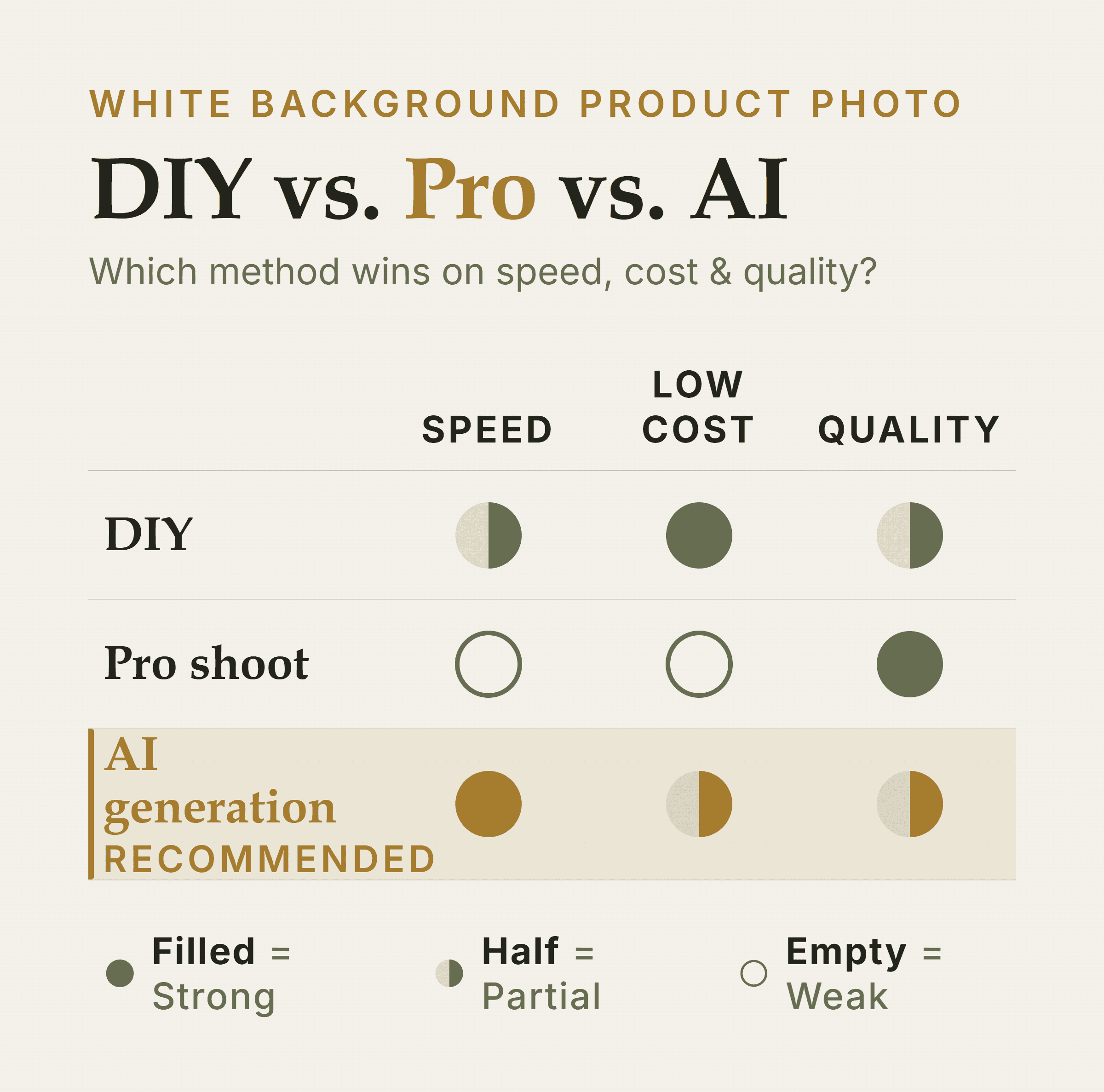
The pro shoot still wins on quality. DIY wins on cost. AI wins on speed.
Here is the decision in one table. The professional column uses Shopify's 2026 pricing breakdown, which puts product photographers at $500 to $3,000 a day and per-image rates between $50 and $350.
DIY vs. pro shoot vs. AI generation — Setup time
DIY: About 1 hour
Pro shoot: Days to weeks
AI generation: Minutes
Cost per shoot
DIY: Under $40 in gear
Pro shoot: $500–$3,000 per day
AI generation: Fraction of a shoot
Editing per image
DIY: 20–60 minutes
Pro shoot: $50–$350, outsourced
AI generation: Light review only
Quality ceiling
DIY: Good for matte items
Pro shoot: Highest
AI generation: Studio-grade, ~90% ready
Scalability
DIY: One SKU at a time
Pro shoot: Limited by day rate
AI generation: Whole catalog
Platform specs
DIY: Manual export
Pro shoot: Manual export
AI generation: Out of the box
Keep the table honest, though. A professional still wins on hero lifestyle shots with models, complex props, and finishes that must be captured physically. Hybrid studio services such as Soona sit in between, and our Olivia vs. Soona page covers that tradeoff.
Frequently asked questions
What is the best background for product photography?
Pure white, RGB 255,255,255, is the standard for Amazon main images and most ad platforms. It keeps attention on the product, sits cleanly on any page, and is the easiest background to edit to spec.
Can I use a white sheet instead of foam board for product photos?
You can, but fabric wrinkles and absorbs light unevenly. As a result, you get soft shadows and gray patches that take far longer to edit out.
Foam board or a lightbox gives a flatter, brighter surface, so the background reaches pure white with far less work.
How do I make my background pure white in editing?
Raise Whites and Highlights in Lightroom Mobile or Snapseed until a color picker reads 255,255,255 on the background. Use a selective mask so the product does not wash out.
If gray patches remain, cut the product out with remove.bg or Photoshop's Select Subject and place it on a solid white layer.
Does Amazon require a pure white background for product images?
Yes. Amazon's main image guidance calls for a pure white background (RGB 255,255,255), the product filling 85% or more of the frame, and no text, logos, watermarks, or props. Off-white can get a listing suppressed.
How does AI product photography work for white background shots?
You upload one existing product image and describe the shot. The system then generates new white background product photos, plus other angles and lighting presets, without a physical shoot or an editing pass.
Output arrives at platform-correct specs, and a transparent PNG or WebP cutout is available when you need to composite.
What's the fastest way to get white background photos for multiple SKUs?
AI generation, because it scales in a way no physical method can. One brief produces multiple angles and variants across an entire catalog in minutes.
By hand, every SKU costs a shoot plus 20 to 60 minutes of editing.
What to do this week
Shoot one SKU with the DIY method this week, because the exercise teaches you what a compliant white background product photo looks like. Then decide whether the next 39 SKUs deserve your evenings or a single upload.
See how your product creative stacks up Answer seven questions and Olivia researches your brand, listing images, ads, and email, then returns a free funnel pre-audit with a prioritized fix list. Start my free audit